
SCREEN
Start with a visible state.
Capture the current browser view. This is a useful first choice for web apps, dashboards and feeds whose content exists only while visible.
WEBSITE TO FIGMA
LilLabr captures a rendered webpage in Chrome and brings supported content into Figma as editable layers. Start a redesign, collect a useful UI reference or compare a live interface with your design.
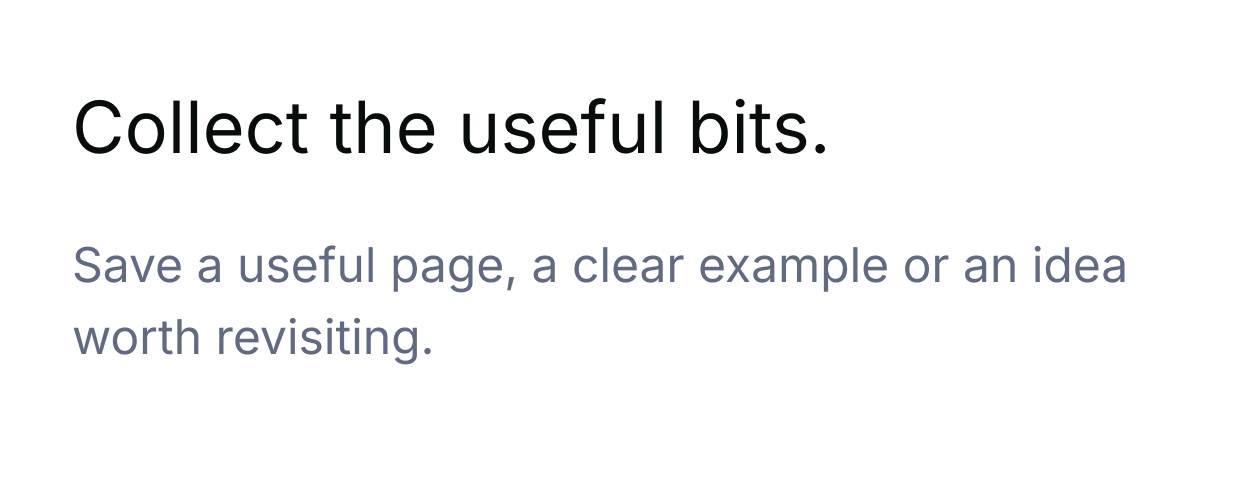
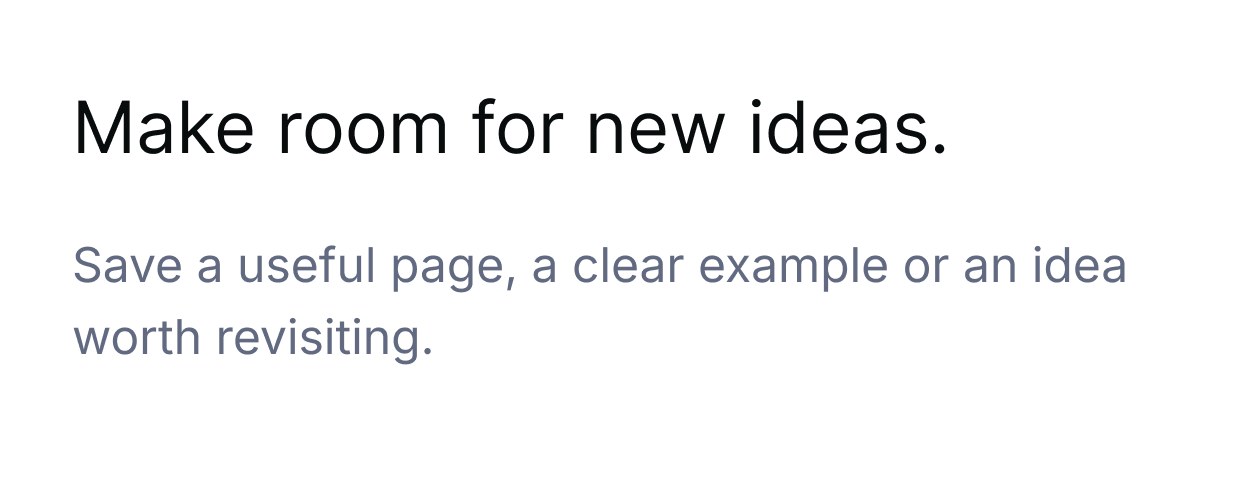
The owned Field Notes notebook was captured in Chrome and pasted into a real Figma Design file. In a duplicate of that native frame, the first card’s text changed from “Collect the useful bits.” to “Make room for new ideas.” The original capture stayed intact.
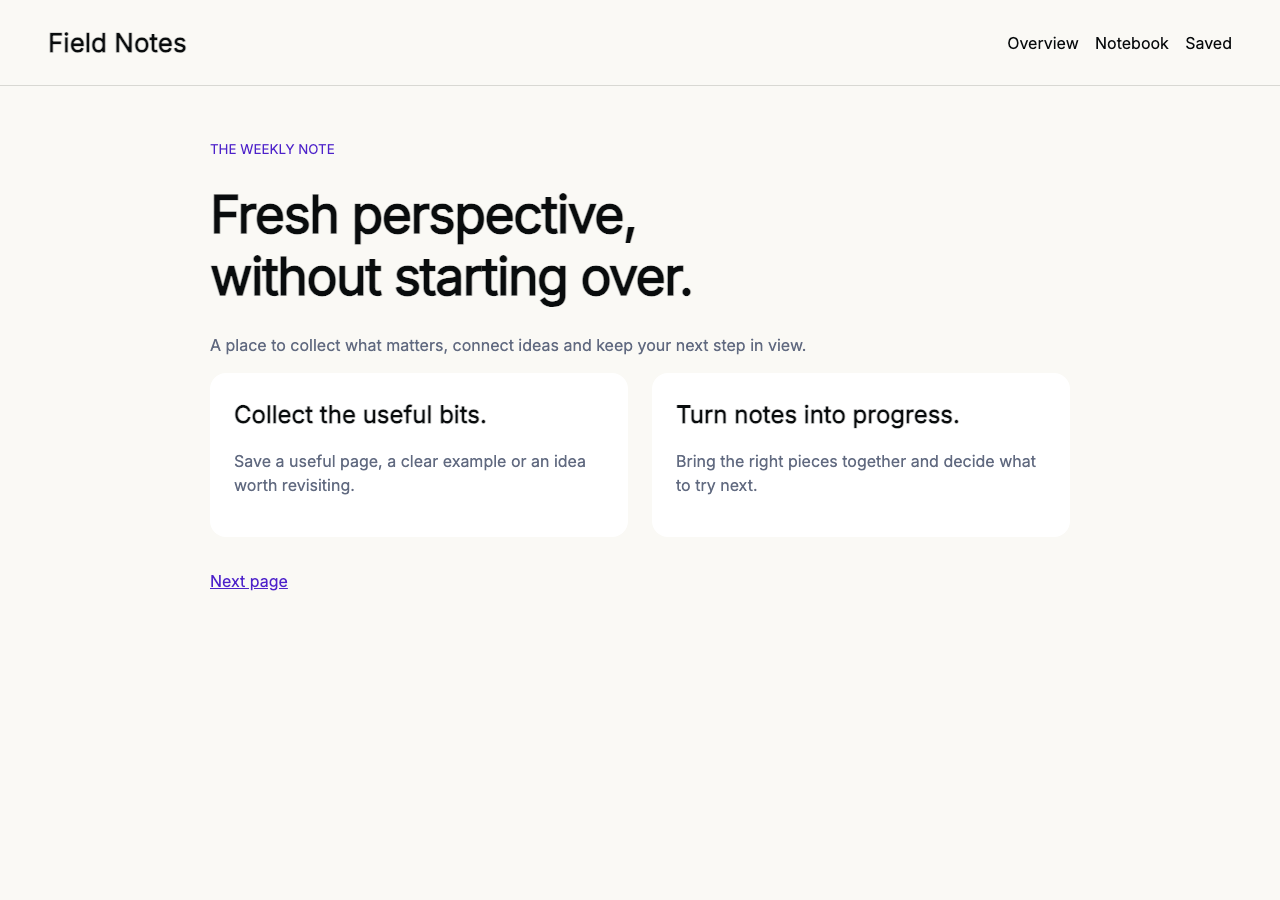
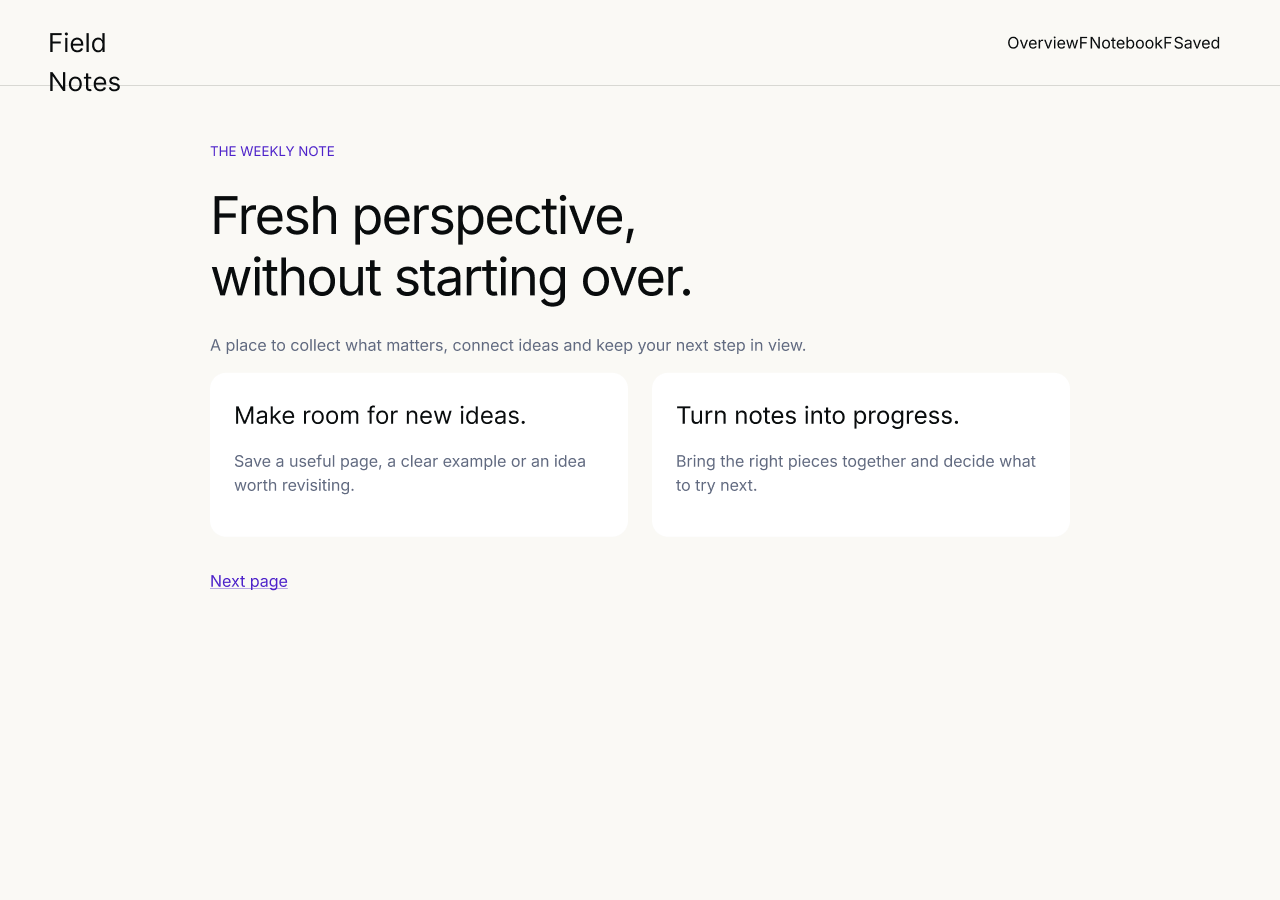
One controlled sample verifies editable output; it does not establish pixel-perfect results for every website.
SCREEN
Capture the current browser view. This is a useful first choice for web apps, dashboards and feeds whose content exists only while visible.
FULL PAGE
Capture a page beyond the viewport. Lazy images may load during capture; virtualized or inaccessible content can still be missing.
PICK ELEMENT
Select a card, navigation area or other UI element. A smaller capture gives you a focused piece to inspect and edit in Figma.
Follow the element-capture guideOnce the capture is ready, choose Copy to Figma, switch to a Figma Design file and paste. Direct paste does not require the plugin or a LilLabr account. Copy confirmation tells you the clipboard is ready; inspect the actual pasted layers in Figma.
Choose Save .labr, then open or drop the archive into LilLabr Import. File import does not require cloud pairing or a LilLabr account. A paired cloud workflow is also available when you choose uploads.
The original Field Notes samples are made for LilLabr. The green poster is the element-selection exercise; the notebook page is the source for the verified native Screen-paste and text-edit example. Both let you practice without private customer data.
Pick a focused component, choose a local handoff and check the result in Figma.
Copy a UI element to FigmaKeep an original reference, duplicate an editable capture and change one heading first.
Redesign a website in FigmaLilLabr reads the rendered webpage you choose in Chrome. It does not turn an arbitrary uploaded HTML file or an existing screenshot into editable layers. Supported text, images and layout become a starting point for design work.
Complex layouts can need cleanup. Missing fonts, blocked resources, inaccessible embedded content and virtualized lists affect the result. If an asset failure blocks paste or file import, wait for the assets to load and capture again. Chrome’s own pages and the Chrome Web Store cannot be captured by the extension.
Local clipboard and file handoffs avoid uploading the capture to LilLabr’s sync service when Cloud sync is Off before capture. Pasting into Figma, sharing the file, clipboard sync and page asset requests have their own destinations. Optional product analytics is a separate, default-Off choice.
Read the complete setup guide or get capture and import support.