WORKED EXAMPLE · WEBPAGE REDESIGN
Start a website redesign
in Figma.
Bring an existing webpage into a Design file, keep a reference and change one piece of copy first. This example uses the original Field Notes notebook page rather than a customer dashboard.
1. Capture the state you want to redesign.
Open the owned Field Notes notebook sample in Chrome. For the notebook’s visible cards and heading, choose Screen. For a long page, Full page can be useful; for a focused card, follow the element-capture exercise.
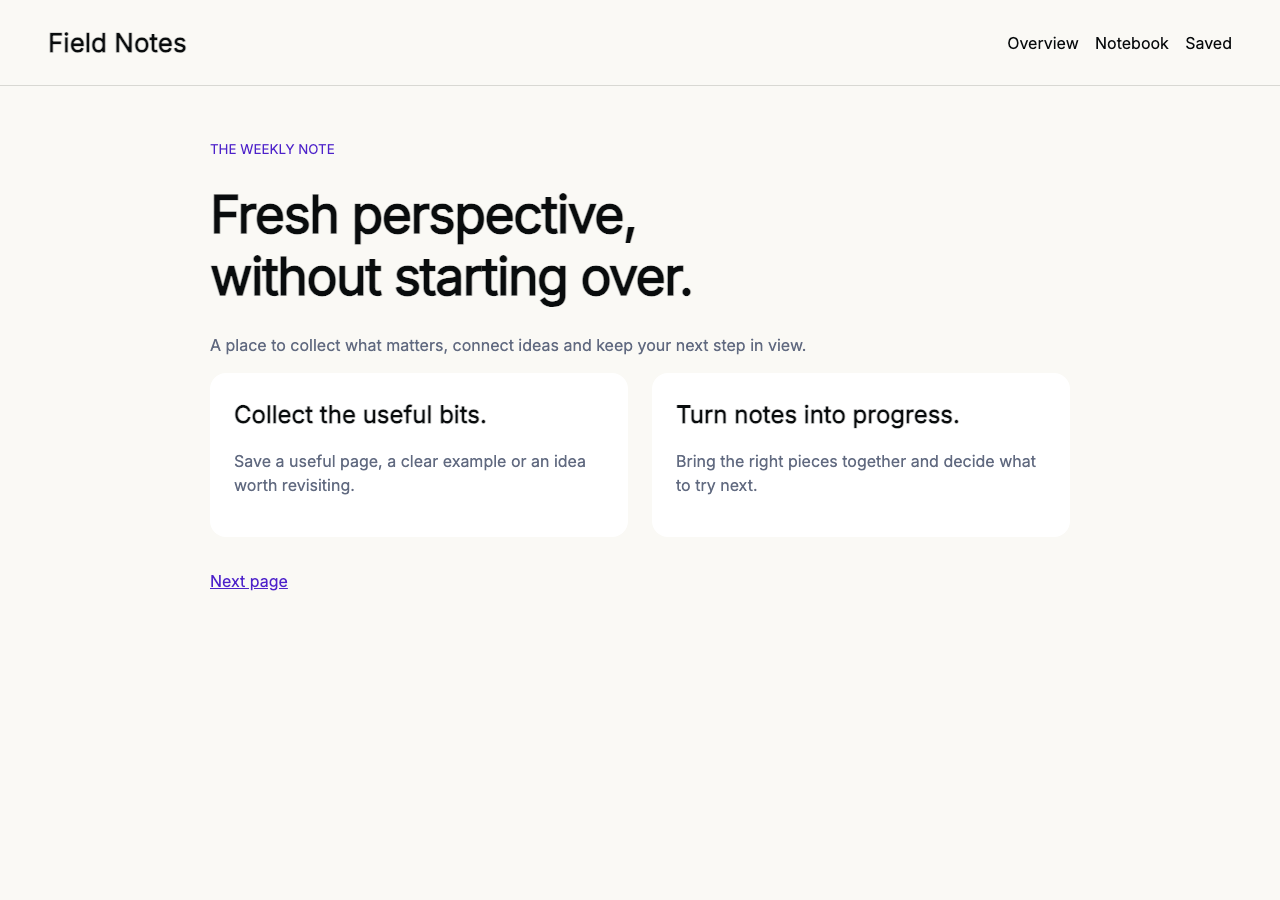
For a local handoff, set Cloud sync Off before capture. Wait for the capture to finish, then use Copy to Figma and paste into a Figma Design file. Alternatively, Save .labr and import the archive with LilLabr Import. Read warnings and check that the content you need actually arrived.
2. Check the native layers.
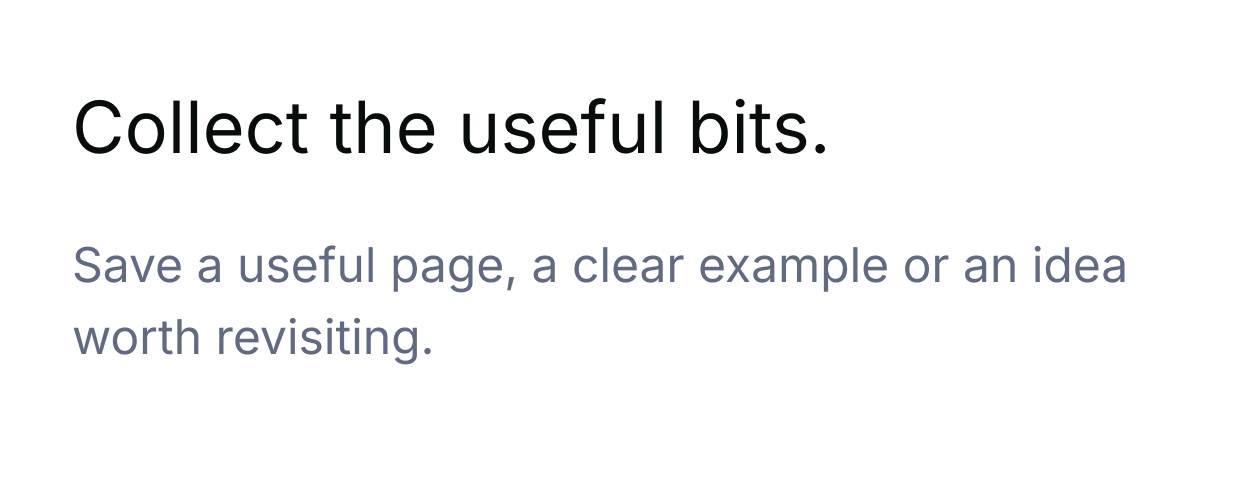
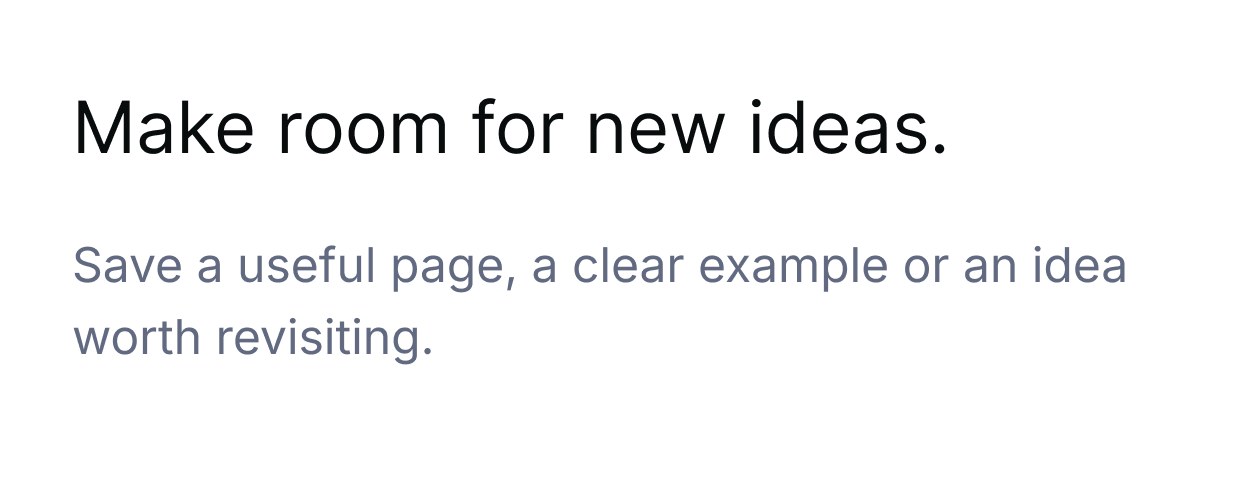
In the verified Field Notes notebook screen-paste example, the capture produced a native Figma frame with 11 text layers. A duplicate kept the original intact. The card heading “Collect the useful bits.” was changed to “Make room for new ideas.” in a native Figma text layer, then read back to verify the edit. This is a specific sample result, not a fidelity promise for arbitrary websites.
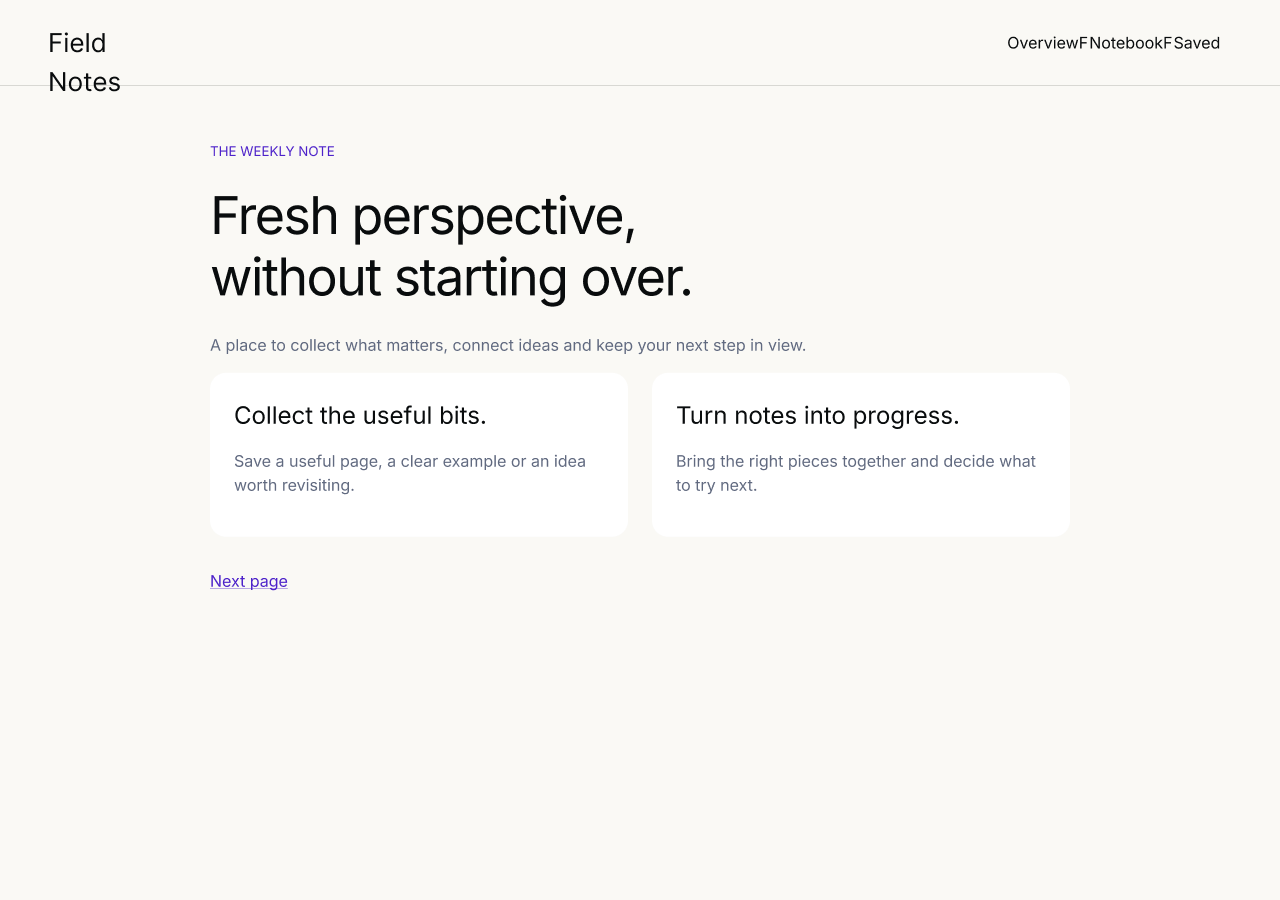
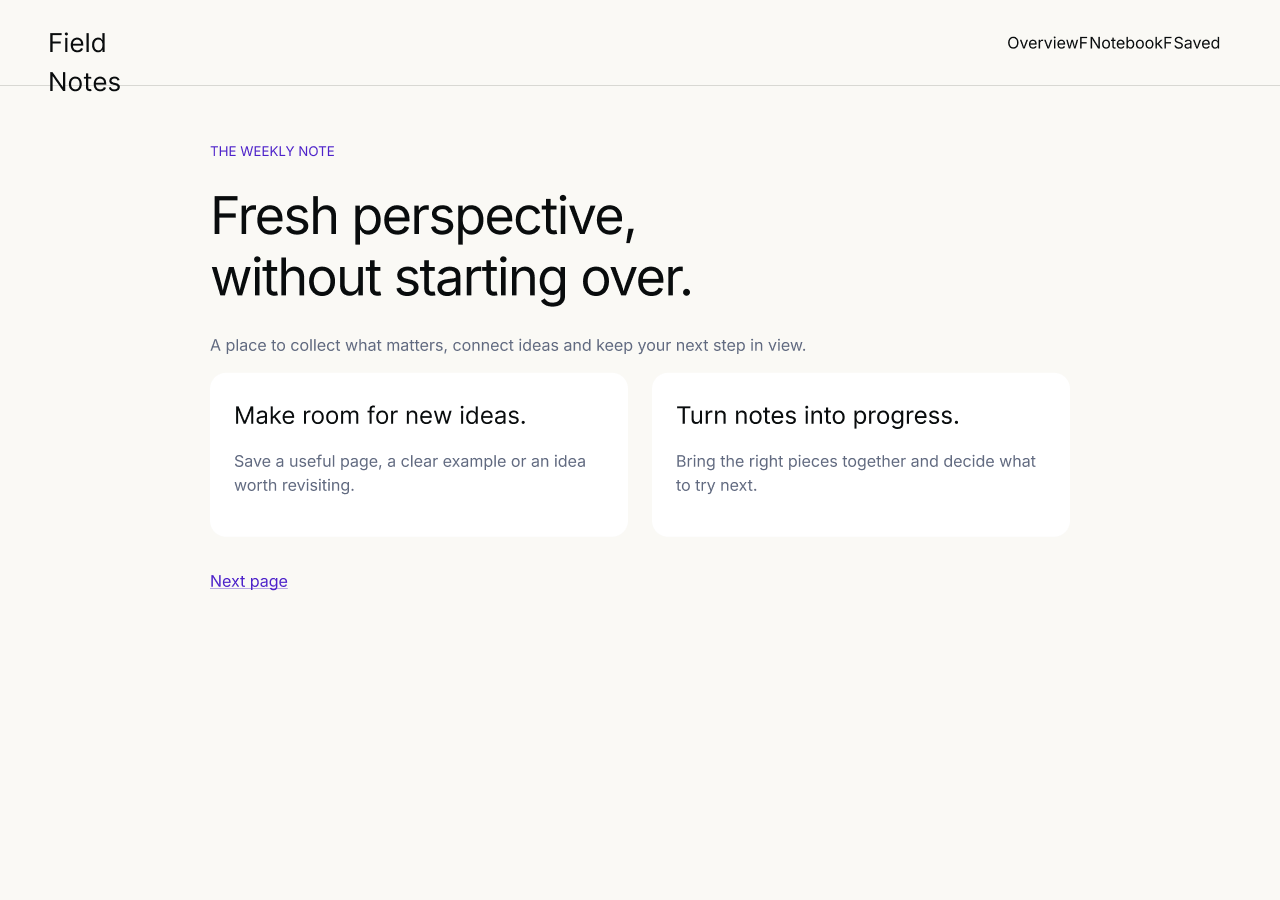
Use the Layers panel to distinguish text, shapes and images. If the result is missing fonts or uses substitutions, compare line breaks with the source before changing the layout. Keep any import warnings with your working notes.
3. Keep a reference and edit one heading.
- Keep the original imported frame. Duplicate it and give the copy a clear working name.
- Find the native text layer for “Collect the useful bits.” Enter text-edit mode.
- Replace it with “Make room for new ideas.”, then inspect the wrapping and spacing. This copy change is a useful first check that you can work with the capture.
- Adjust the text box or nearby spacing deliberately. A captured layout is a starting point; it does not inherit your product’s complete component system.
4. Compare and decide what needs cleanup.
Place the original and working frames side by side. Check heading wrapping, visible images, masks and the important relationships between elements. This capture’s header wraps “Field Notes” and compresses the navigation spaces; those artifacts are visible in the exports above and need manual cleanup. Use the source webpage as the reference when a captured detail looks wrong.
This example verifies capture, native editable text and a visible card-heading change for the Field Notes notebook. It does not establish an improved conversion rate, full design-system reconstruction or a completed SaaS dashboard redesign. For a real dashboard, capture only content you are allowed to use and test that dashboard’s specific state before extending this method.
If assets failed to load and paste or import is blocked, wait for them to load and capture again. If content is virtualized, try Screen for the visible state. Read capture and import recovery guidance.
Install Chrome Extension