WORKED EXERCISE · ELEMENT CAPTURE
Copy a UI element
to Figma.
Use the Field Notes illustration to practice a focused capture. Move the result into a Figma Design file and inspect the layers before making a change.
1. Open the original sample.
Open the Field Notes sample in Chrome. It is an original public example, with a heading, an illustrated poster card and a three-column highlights section. Keep the browser at a comfortable desktop width so the poster card is easy to select.
If needed, install LilLabr from the official Chrome Web Store. Open it with the toolbar icon. Follow the version guidance above, then set Cloud sync Off before this local-only capture exercise.
2. Pick the illustrated card.
Choose Pick element. Move over the large green card on the right, labeled “Field Notes / 001.” Check the highlighted boundary, then click the card to capture it. Press Escape if you need to cancel the selection and try again.
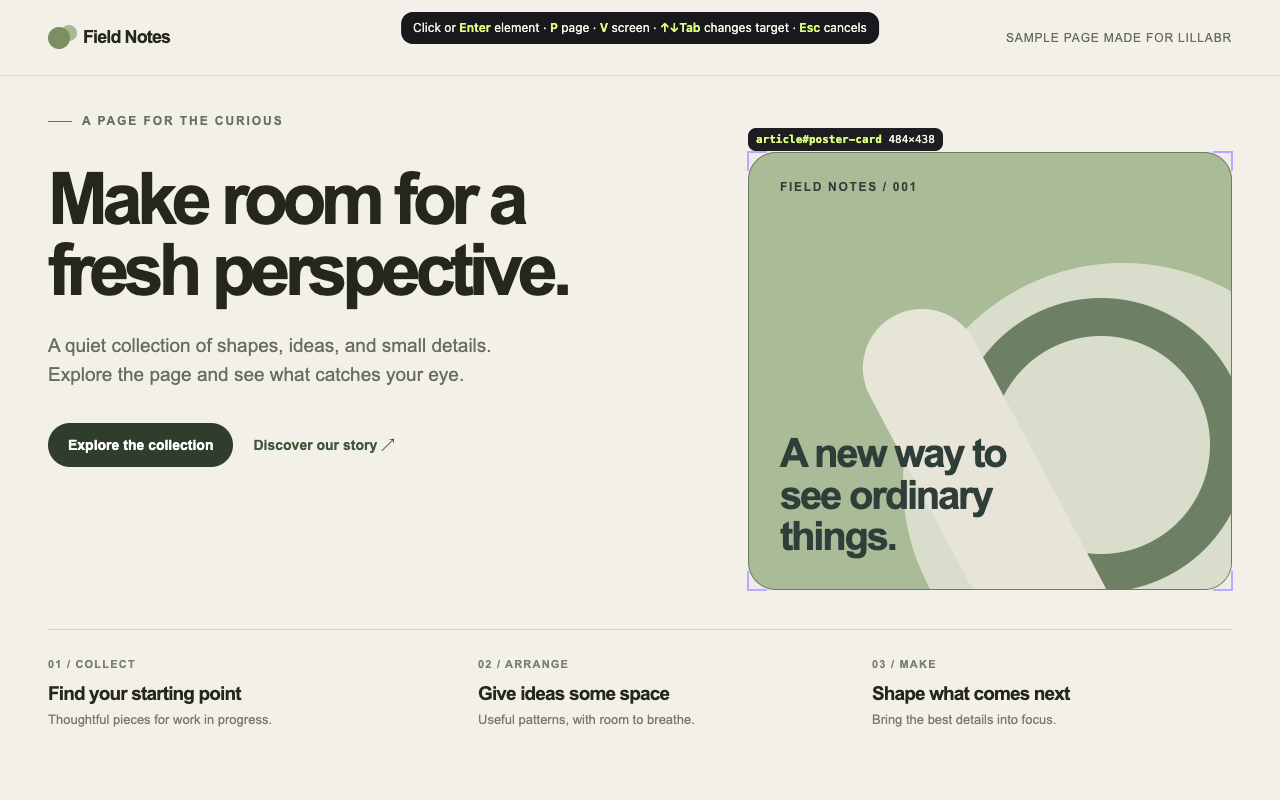
Wait for a ready capture. Read any capture warnings. If the selection took the wrong parent or missed the text you need, pick the element again rather than assuming every layer was included.
3. Choose the handoff.
For direct paste, choose Copy to Figma after the capture is ready. Wait for copy confirmation, switch to a Figma Design file and paste with Command-V on macOS or Control-V on Windows. The plugin is not required for direct paste.
For a saved file, choose Save .labr. Open LilLabr Import in a Figma Design file, then select or drop the saved archive. Pairing is not required for this file route. Wait for import completion before judging the result.
4. Inspect before you edit.
Expand the captured frame in Figma’s Layers panel. Look for editable text and shapes rather than judging the capture only by its preview. Select “A new way to see ordinary things.” if it is present as a text layer. Duplicate the imported frame, then try a shorter heading such as “Make the ordinary stand out.” Keep the original as a comparison.
This is an exercise using a supported sample, not a guarantee for every component. A font substitution can change wrapping. Complex masks, inaccessible embedded content or blocked assets can require another capture or manual adjustments.
For an existing verified native text-edit example, continue to the Field Notes notebook screen-paste example. That separate proof covers a Screen capture of the notebook sample; the picker image above establishes the green poster’s element selection only. The two samples have different layouts.
Compare all website-to-Figma workflows or get help with a failed capture or import.