EXPLAINER · SCREENSHOTS VS LAYERS
Screenshot to Figma,
or editable layers?
Pasting a screenshot into Figma gives you one flat image. A LilLabr capture gives you text, image and vector layers you can edit. Here is what each is good for, and why LilLabr does not convert screenshots you already have.
The difference, in one sentence.
A screenshot is pixels: Figma can crop it, mask it and draw on top of it, but it cannot select the heading, change a button color, swap the font or measure the padding exactly. A LilLabr capture is layers: each text block is a text layer with its font and size, each image is an image fill (a canvas or a video poster arrives as an image too), each supported SVG icon can be an editable vector (on the paste route an inline SVG that uses gradients, clip paths, masks, filters or text arrives as one image of that SVG; the .labr file import keeps it as vectors), and compatible flex containers can become auto layout.
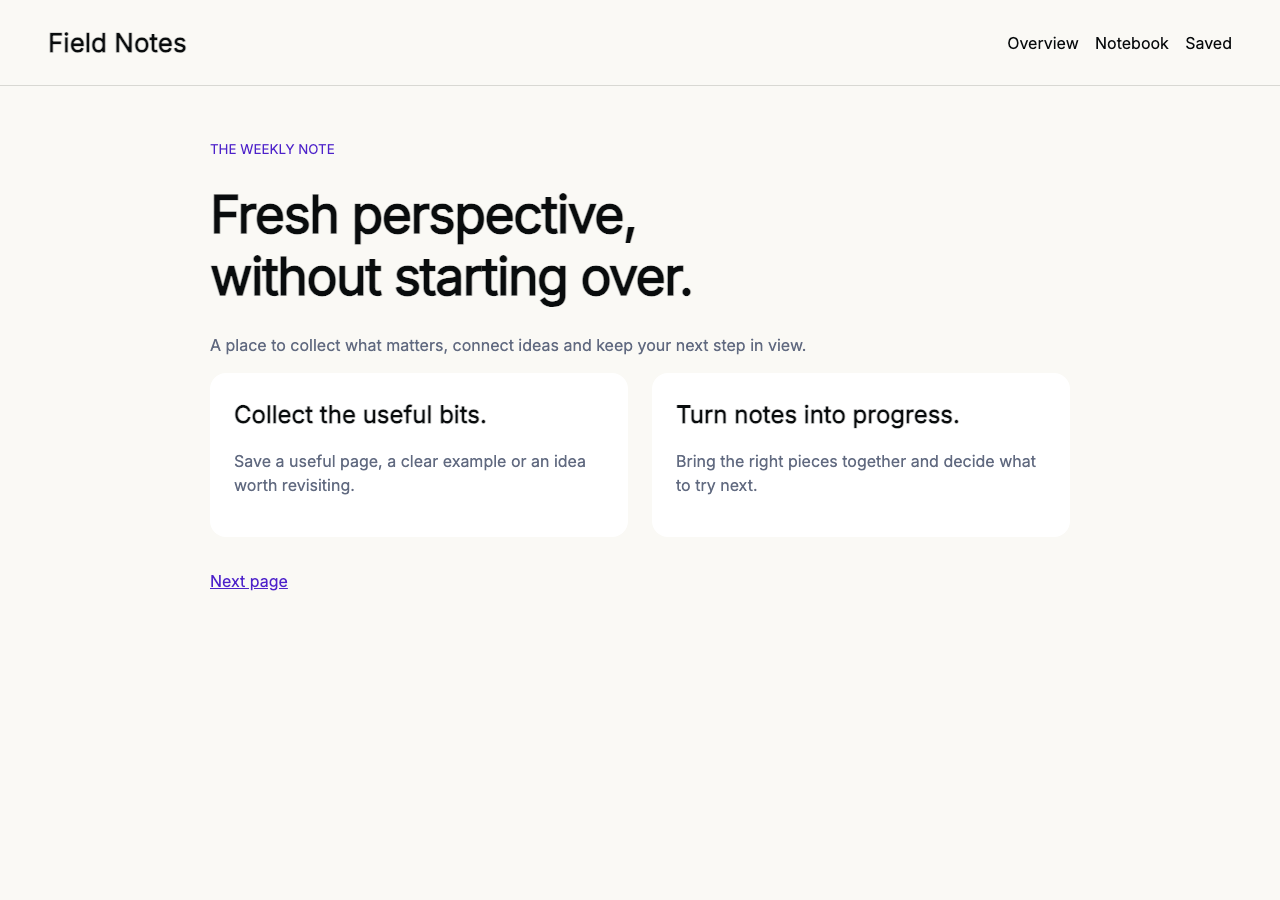
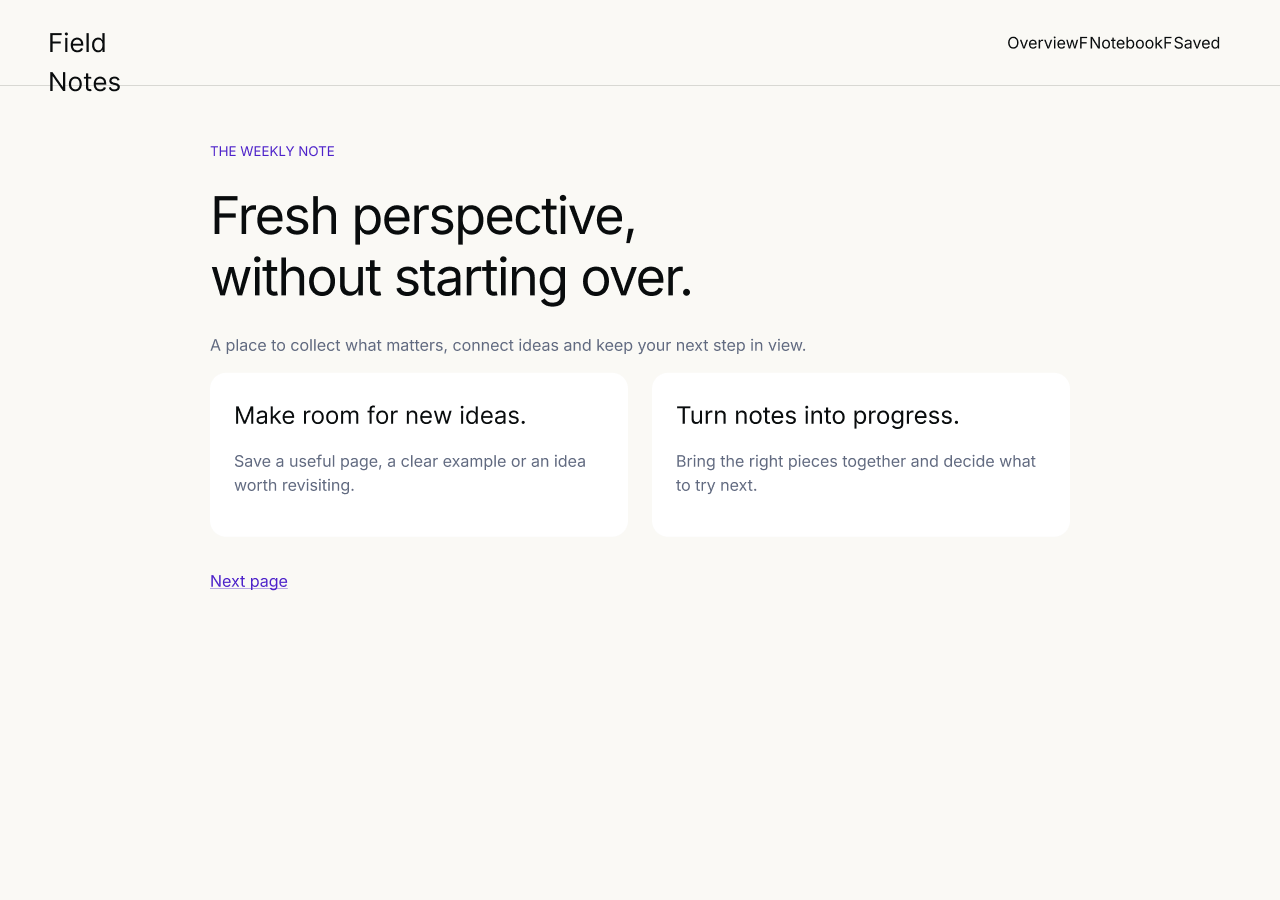
One controlled sample verifies editable output; it does not establish pixel-perfect results for every website.
Side by side.
| Task | Screenshot in Figma | LilLabr capture |
|---|---|---|
| Edit the copy | No. Retype over the image. | Yes. Text layers keep family, weight, size, line height and color per run. |
| Change a color or gradient | No. | Yes. Solid and gradient fills, strokes and shadows are layer properties. |
| Swap the font | No. | Yes, with a caveat: font files are not embedded, so an unavailable family falls back to Inter until you set it back. |
| Measure spacing | Approximately, by eye. | From the browser’s recorded boxes rather than by eye. The verified sample still needed its navigation spacing tidied after paste. |
| Reuse a button or card | Crop and redraw. | Copy the frame, then tidy. Compatible flex containers can arrive with auto layout; the rest are fixed-position frames you can convert. |
| Zoom in | Pixels blur at the screenshot’s resolution. | Vectors stay sharp; images are embedded as image fills within Figma’s 4,096 px bitmap limit (the plugin downscales larger ones). |
| Capture an interactive state | Yes, whatever is on screen. | Yes, with Capture screen: the currently mounted state, inside a clipped frame the size of your viewport. Both need the state to be showing first. |
| Effort after import | None, and nothing to edit. | Inspect and tidy. Complex layouts can need cleanup. |
| Privacy | Every visible pixel. | Page content as text and images, including the loaded content below the fold in a full-page capture, plus the page title, capture time, window size and browser user agent. Passwords, identified card fields and populated fields inside embedded frames are masked; the page address loses credentials, query string and fragment. Not a complete redaction system. |
| Start from an existing image | Yes. | No. LilLabr needs the page open in Chrome. |
When a screenshot is the right tool.
- You want a reference in a mood board and will never edit it.
- You are annotating a bug, not redesigning the screen.
- The thing is not a webpage in Chrome: a native app window, a video frame, an email in a desktop client.
- You need the exact pixels, including rendering quirks, rather than the structure behind them.
When editable layers are the right tool.
- You are redesigning an existing site or app and want to start from what exists instead of a blank canvas. The redesign guide.
- You are collecting a pattern, a card, a navigation bar, into a reference library you can adapt. The element-capture exercise.
- You want to compare a live interface against your design file, with real text and real measurements.
- You want the current state of a web app, drawer open and row selected, as a frame you can keep editing. Capturing app screens.
Already have a screenshot and nothing else?
LilLabr cannot turn it into layers, and this site will not pretend otherwise. What you can do: open the live page in Chrome, open the panel from the LilLabr toolbar icon and capture that instead. If the page has changed or gone, a web archive may still serve a copy that opens in Chrome; archived pages often have missing assets, and a capture with a failed asset is blocked from import, so results vary. Failing that, place the screenshot in Figma as an image fill and draw on top of it as a reference.
Ready to capture a page? The step-by-step guide, or install LilLabr from the Chrome Web Store.